Remote Control Portal, Remote Desktop
1. We will email you the website link, and a temporary password.
Bookmark the website link when you receive it.
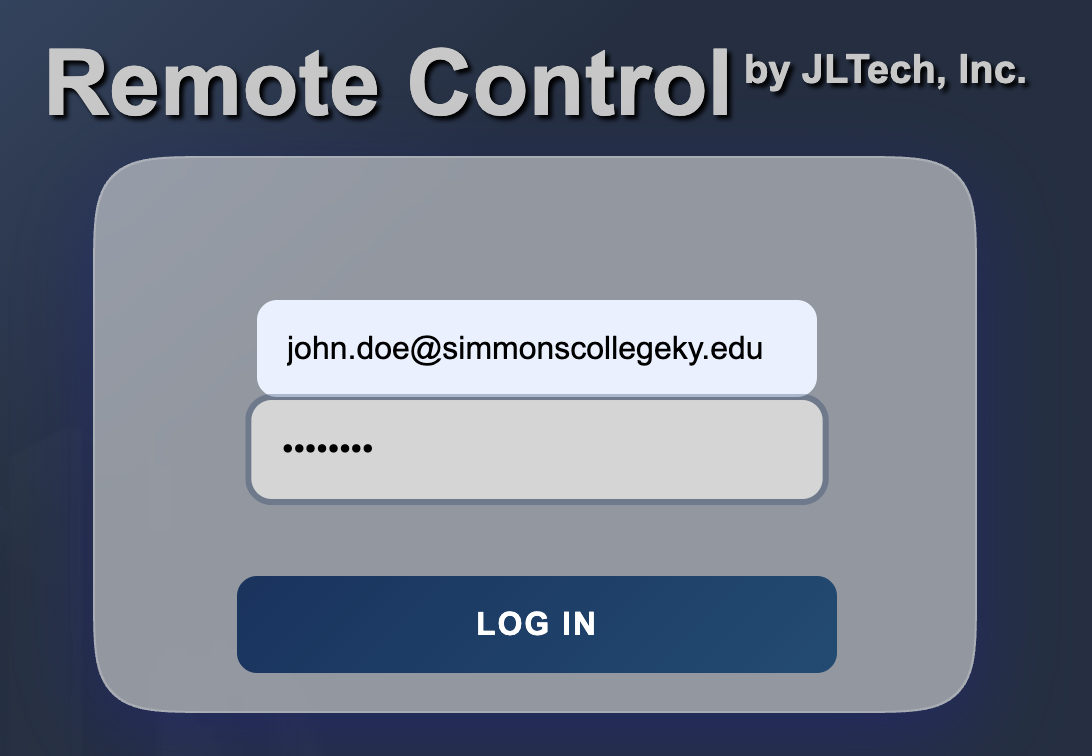
2. Enter your Simmons email and the temporary password.
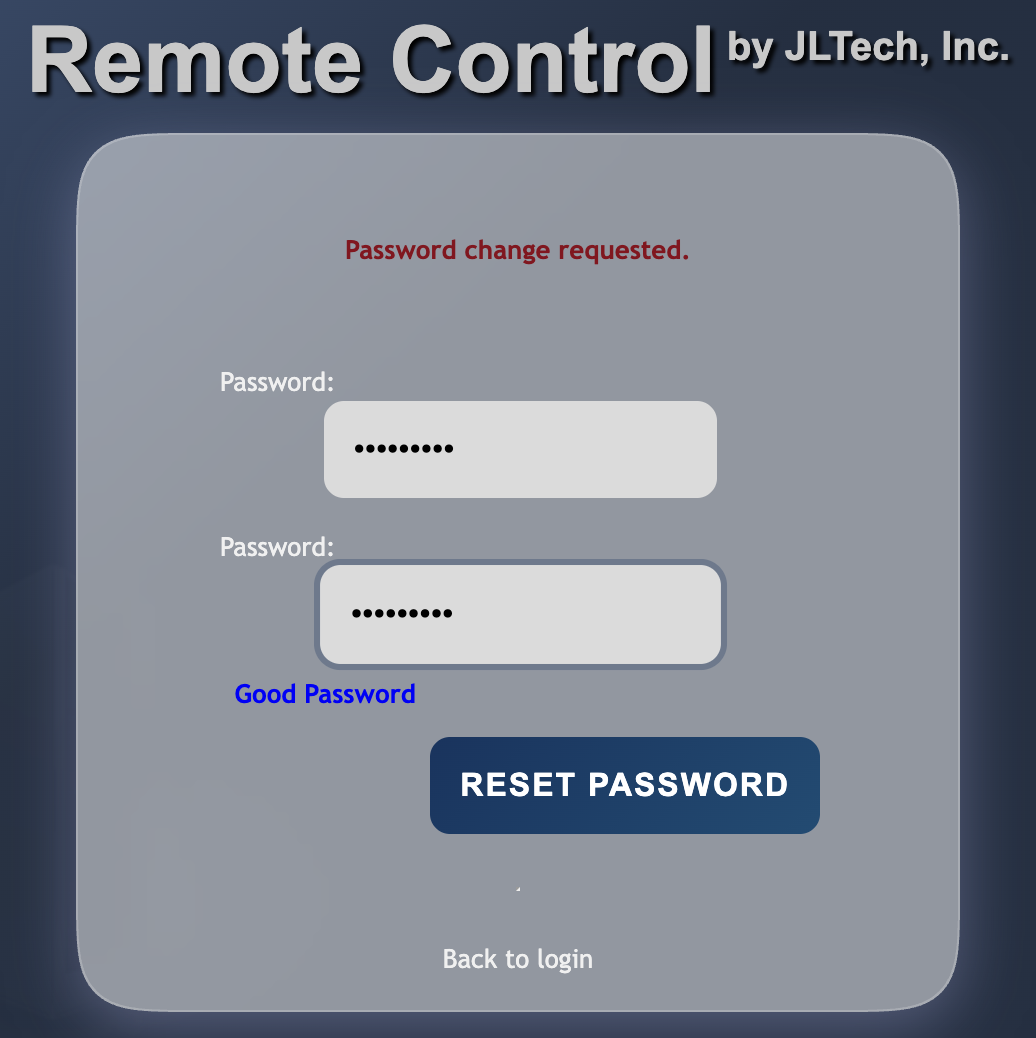
3. Enter your new password (most people use their email password).
Then Press RESET PASSWORD.
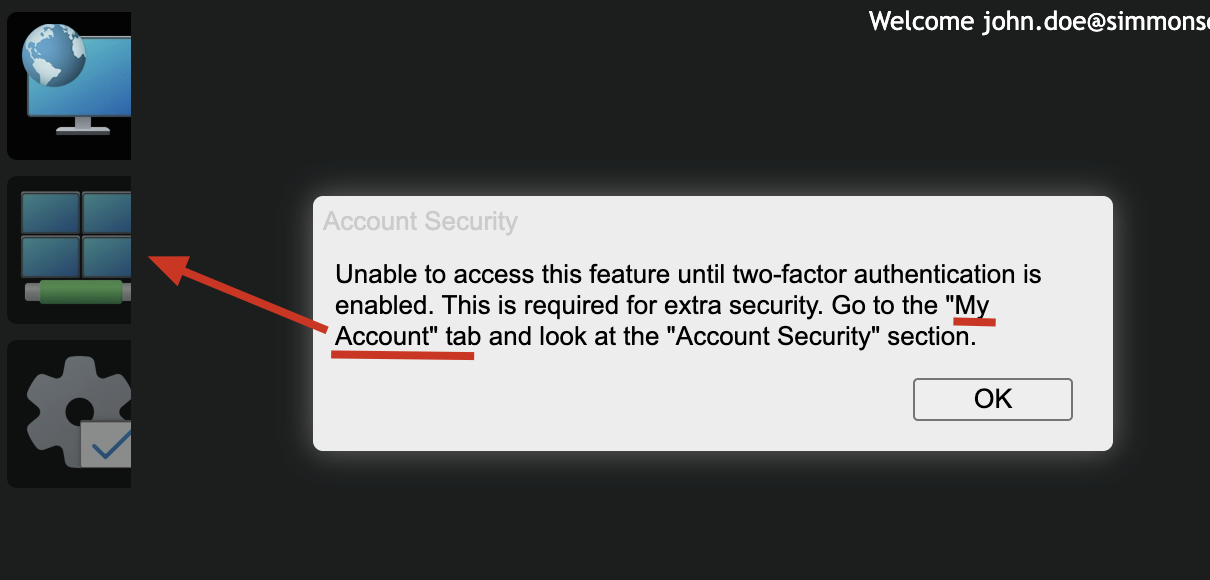
4. Press OK. Then click the 4 blue boxes to setup 2FA
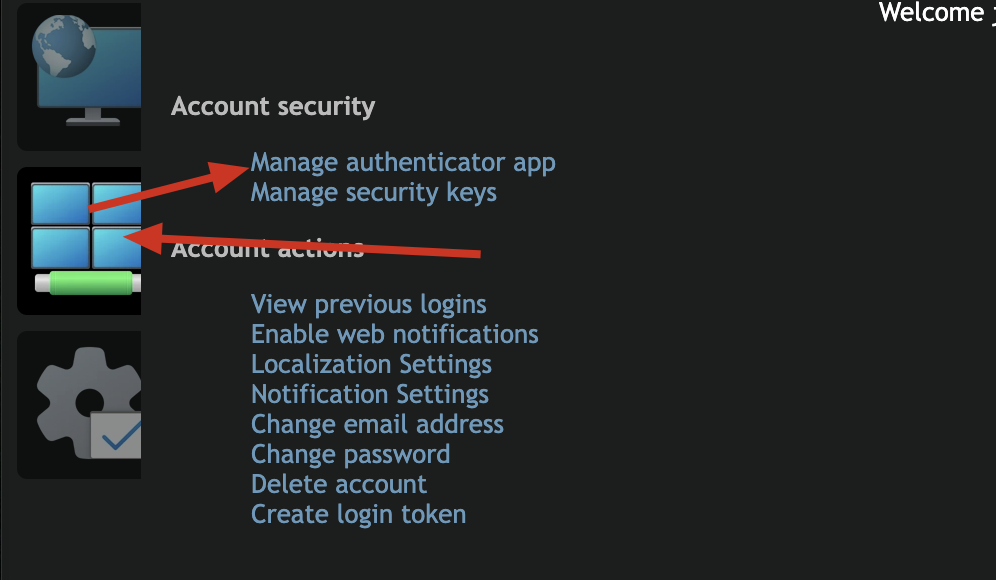
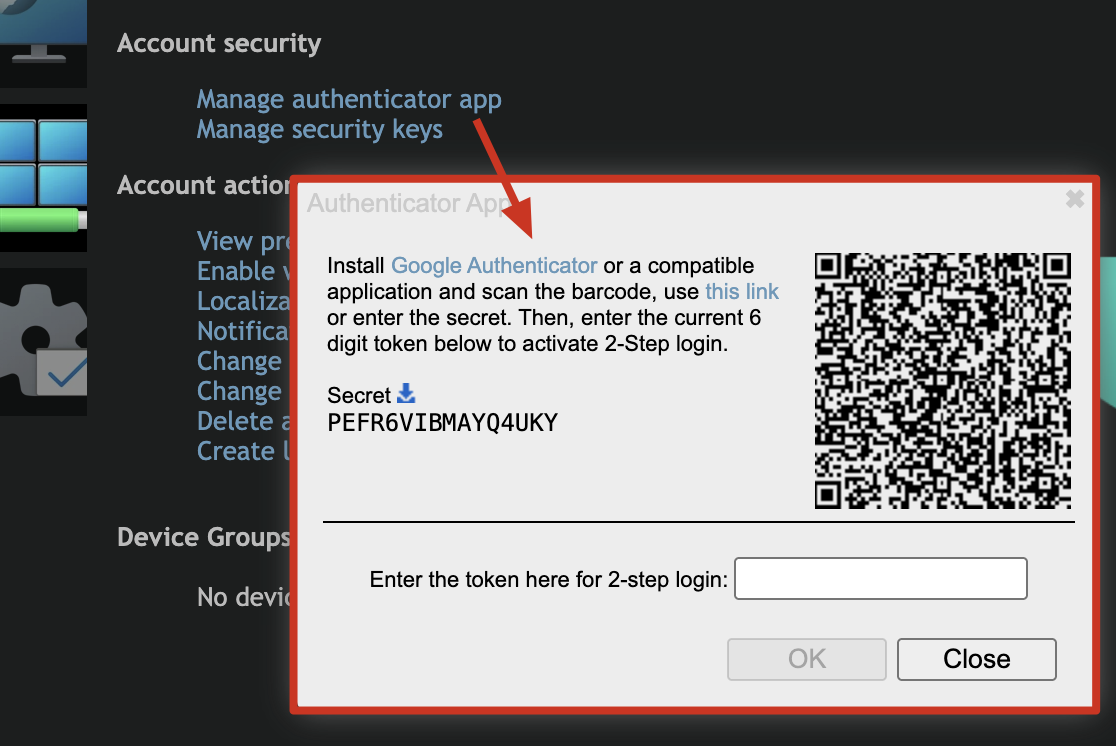
5. Press Manage authenticator app.
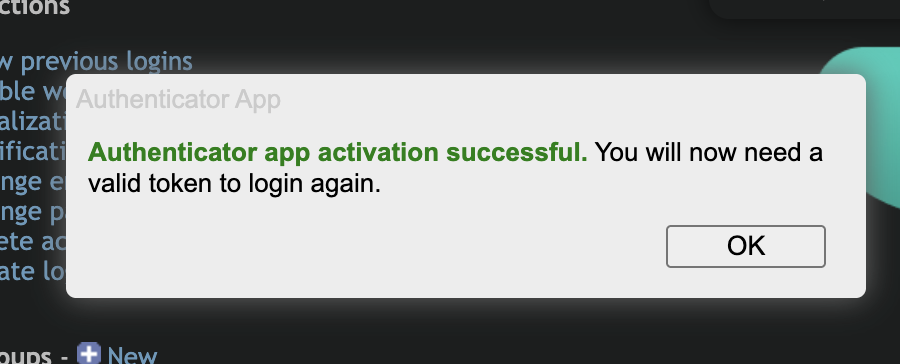
6. Scan the QR code with your Authenticator App. Then enter that 6-digit code.
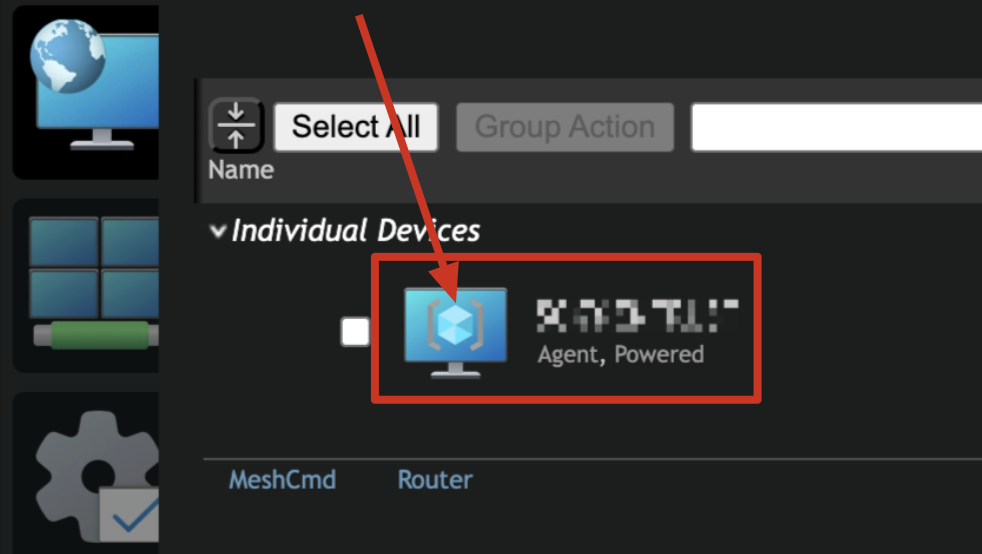
7. Click your Remote Computer icon
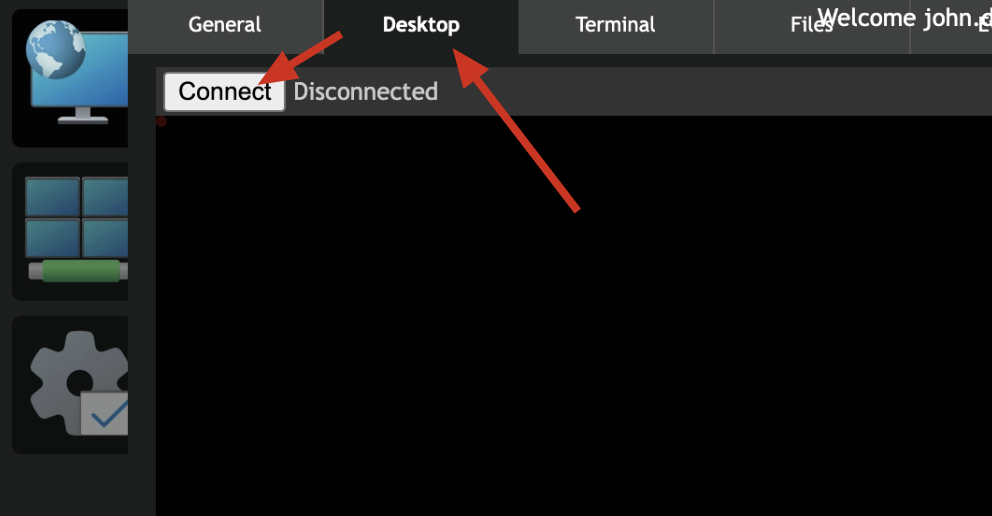
8. Click Desktop, then click Connect
9. Press the Send button to send a <CTRL-ALT-DEL> to your Remote Simmons Computer.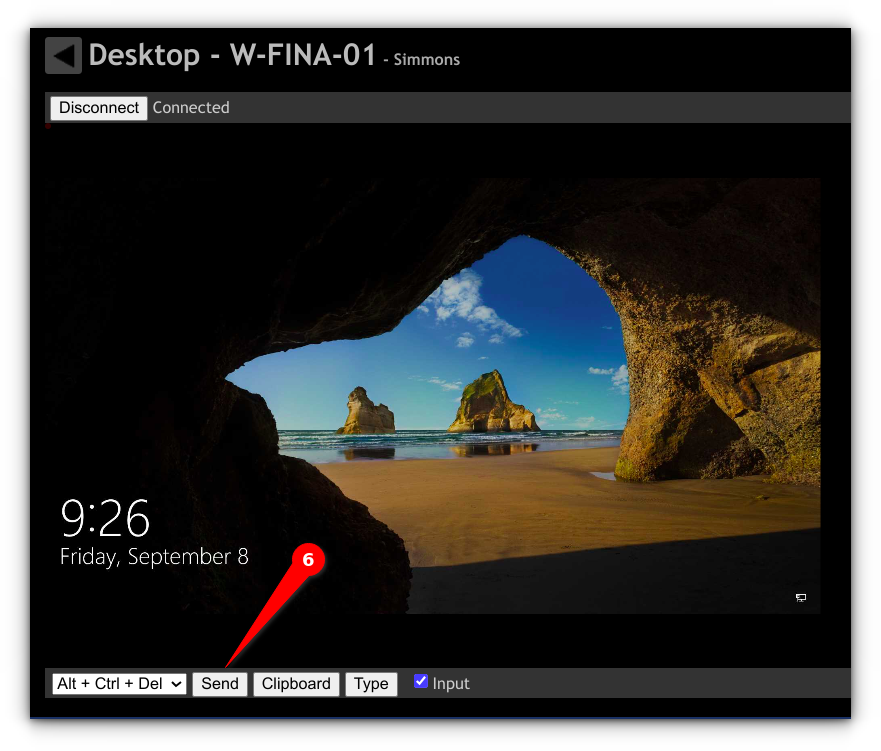
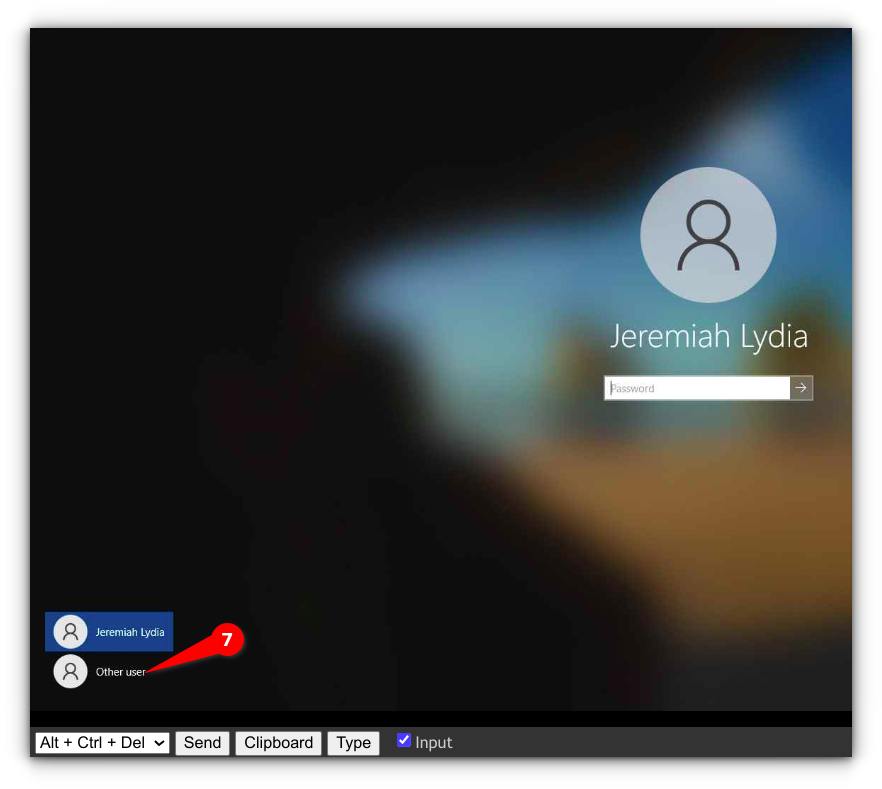
10. If your name is displayed, then click your name. If not, click "Other User".
11. Enter your Remote Computer's Credentials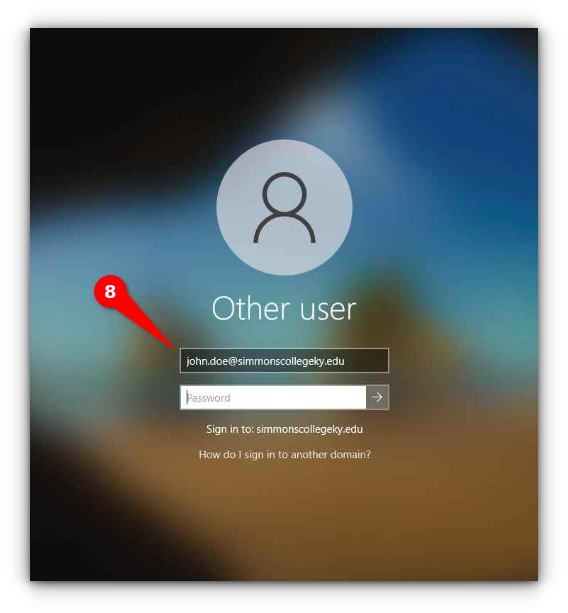
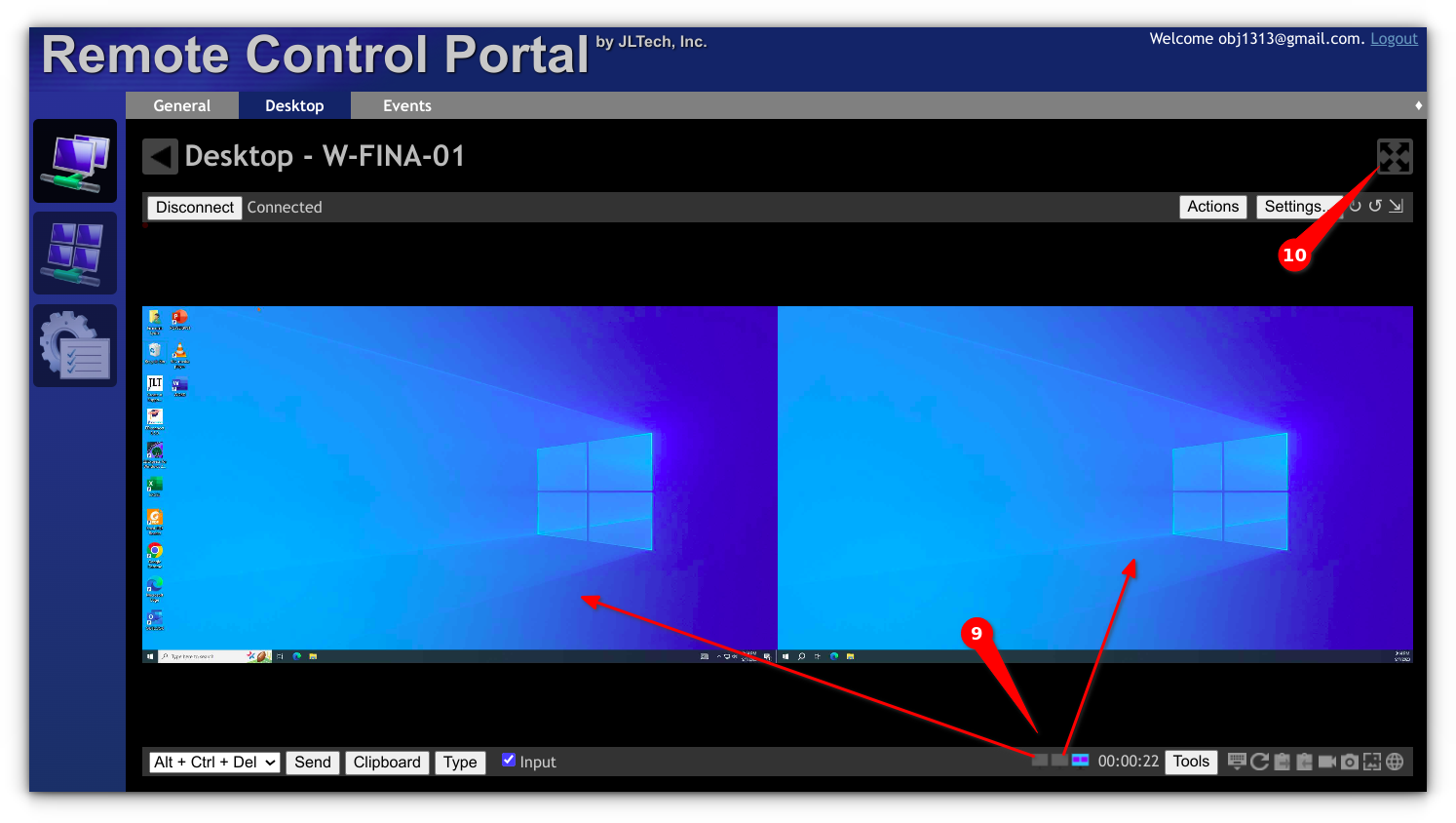
12. If you have dual monitors on your Remote Desktop, select which one to use. For FULL screen mode, press the 'X" pointed to by the 10 in the below instructions.
Was this article helpful?
That’s Great!
Thank you for your feedback
Sorry! We couldn't be helpful
Thank you for your feedback
Feedback sent
We appreciate your effort and will try to fix the article